
How to create a series event
For classes, courses and nights that repeat on a schedule: create the event once, and every date appears on the calendar.
Before you start
- Read step 2 first: how you sell tickets decides whether a series is right for you.
- You need: a free account and the details of your first date. This guide builds on how to add an event.
What a series event is
A series is one event that repeats: a yoga class every Tuesday, a networking night on the first Thursday of each month, or a five-day workshop. You set it up once, and every date appears on the calendar, with a series page listing them all.
- Every date shares the same title, description, photo, venue, organiser, category and tags.
- A change you make applies to every date. You can’t edit one date on its own.
Tickets: choose the right setup first
- Free, no tickets needed: a series works perfectly. Carry on with this guide.
- One pass for every date (for example a six-week course): use a series and ask us for a series pass. Create the series with this guide, then contact us and we’ll set the pass up for you. It then appears on every date and on the series page.
- A separate ticket for each date (people book one session at a time): don’t use a series. Tickets for single dates can’t be added to a series yet. Create each date as its own event instead, using how to add an event, and add tickets to each.
Not sure which? Ask us before you start; it’s much easier than changing it afterwards.
Set up the first date
Open Your events, click Add an event, and fill in the form for the first date of your series: title, description, photo, venue, organiser, category and tags. Write the description so it fits every date. The start and end times you set are used for every date.
Choose how it repeats
In Date and time, next to Repeats, click Schedule multiple events. Then choose what it Happens:
- Daily: every day, or every few days.
- Weekly: on one or more days each week, every week or every few weeks (for example every Tuesday and Thursday, or fortnightly).
- Monthly: on a date (the 15th) or a day (the first Friday). The day option copes better with months of different lengths.
- Yearly: on the same date each year.
- Once: one extra date that doesn’t follow the pattern. Click Add more events to add another rule, for example a monthly series plus one special date.
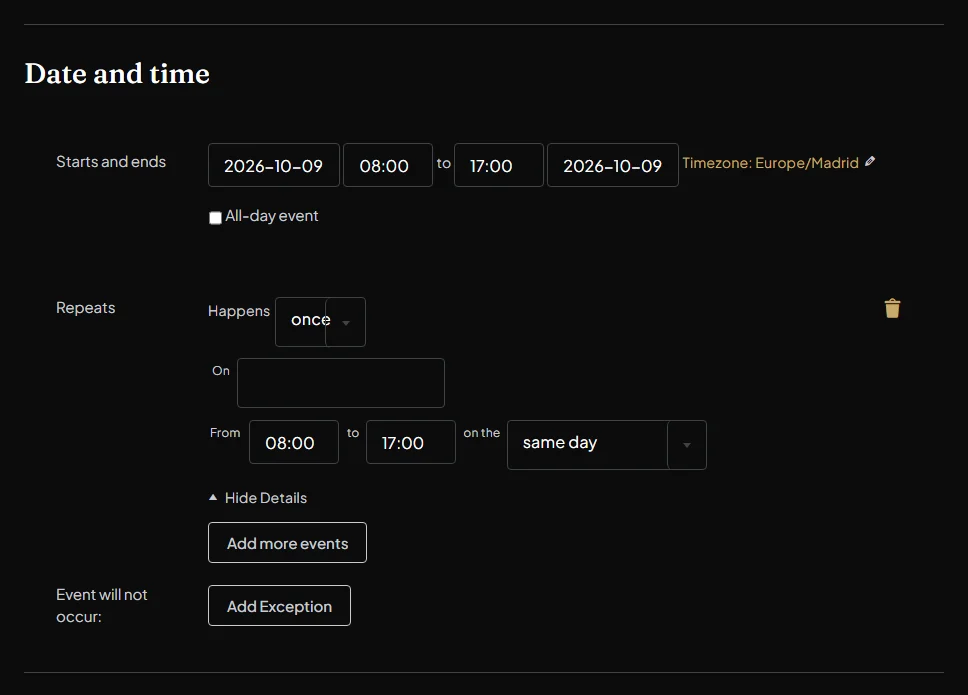
Choose when it ends
For a repeating rule, choose when the series ends: on a date (best when you know the last date), after a number of dates (for example a six-week course), or never (dates are then added up to five years ahead).
Tip: unless your series really is open-ended, set an end. It keeps the calendar tidy and stops dates appearing after you’ve finished.
Skip dates (optional)
Next to Event will not occur, click Add Exception to leave out dates, for example a bank holiday or a week the venue is closed. Skip a single date, or a pattern such as the third Friday of each month. Remove an exception with its bin icon.
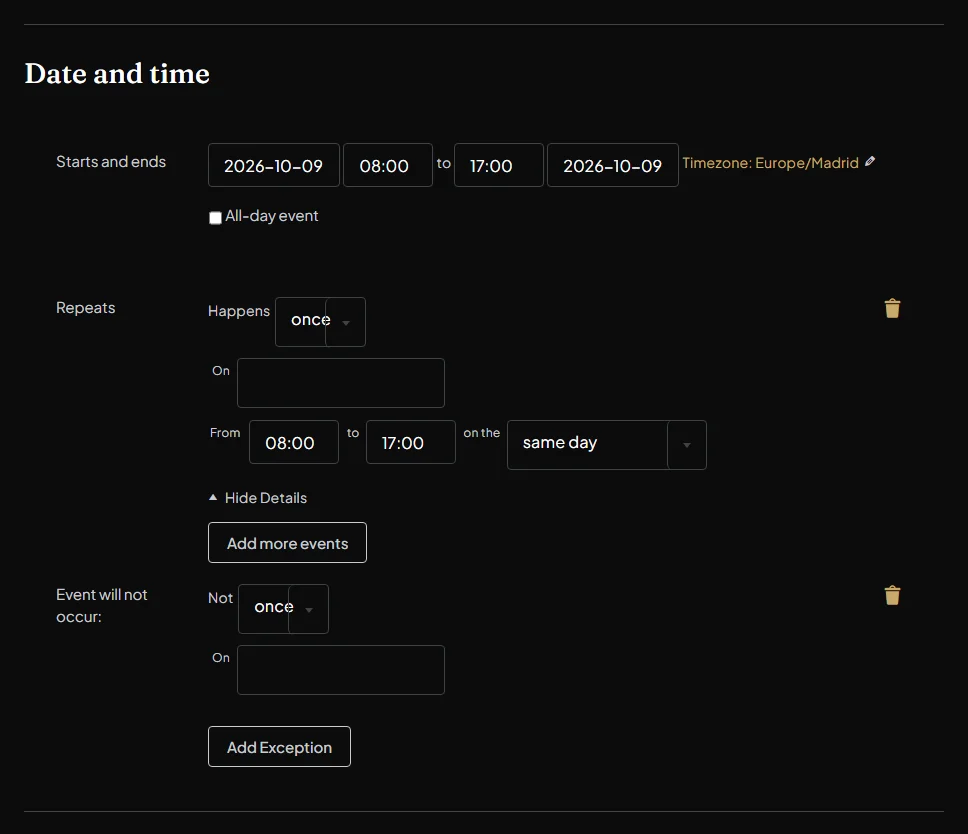
Agree to the terms and submit
Tick I agree to the terms of submission and click Submit event. Every date goes live straight away, together with the series page. To change the series later, click Edit on any of its dates in Your events; the change applies to all of them.
Need a series pass? Contact us once your series is live and we’ll set it up.
Stuck? Call +34 711 088 128, and you’ll talk to a real person.