
How to sell tickets
Add free or paid tickets to your event, then scan them at the door with your phone.
Before you start
- Time: about 3 minutes per ticket type
- You need: an event (how to add one) and, for paid tickets, a PayPal account
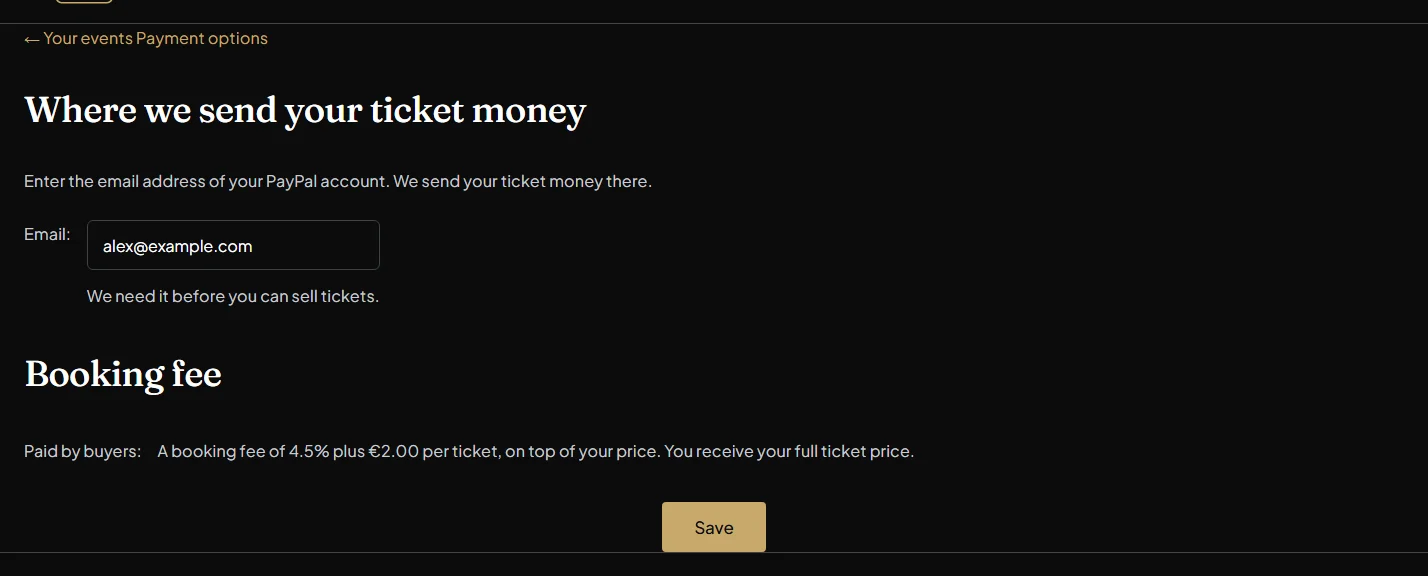
- Cost to you: nothing. Buyers pay a booking fee of €2 + 4.5% per paid ticket on top of your price; free tickets have no fee.
Open your event
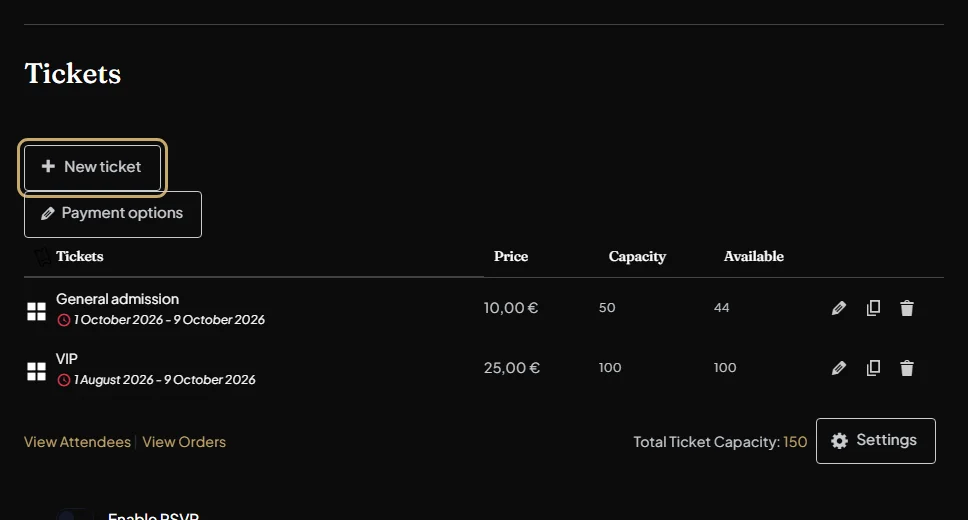
Go to Your events (click Create Events at the top of the page), click Edit under your event and scroll down to Tickets. You can also add tickets while you’re creating a new event.
Set up payment options (first time only)
For paid tickets, click Payment options in the Tickets section and enter the email address of your PayPal account. That’s where we send your ticket money. The page also shows the booking fee buyers pay on top of your price. You only need to do this once.
No PayPal account? You can open a free one at paypal.com. Questions about when payments are made? Talk to us.
Click New ticket
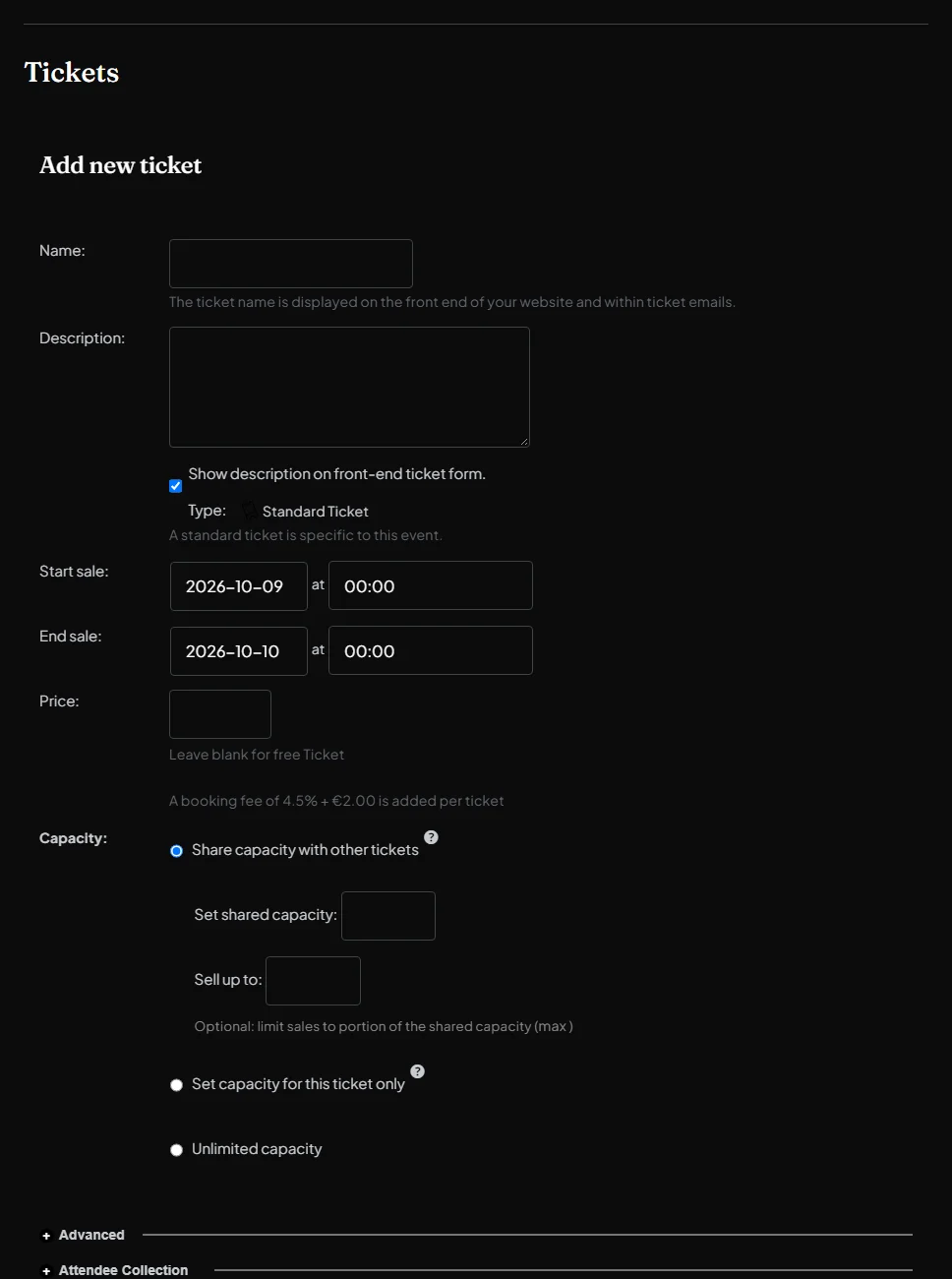
Back in the Tickets section, click New ticket. The ticket form opens. Each ticket type, such as Early bird, General admission or VIP, is a separate ticket.
Name and describe the ticket
- Name: what buyers choose, for example General admission, Early bird or Under 16s. It’s printed on the ticket.
- Description (optional): what the ticket includes, such as “Includes a welcome drink”, or conditions such as “Under 18s must come with an adult”.
Tip: for a limited offer, say so in the name, for example “Early bird (limited)”.
Set when it’s on sale
Start sale and End sale are when people can buy this ticket. If you leave Start sale empty, it goes on sale straight away. Outside these times the ticket can’t be bought, even if your event is live.
Tip: set End sale a little before your doors open, for example an hour before the start, so no one buys a ticket after you’ve stopped checking people in. For an early bird price, make an Early bird ticket that stops selling on a date, and a standard ticket that starts then.
Set the price
Enter the price in euros, for example 15. Buyers pay this plus the booking fee, and you receive the full price. For a free ticket, leave Price empty; don’t type 0.
Set the capacity
- Share capacity with other tickets: all your ticket types sell from one total. With a shared capacity of 200, the event sells out at 200 tickets in total, whatever the mix.
- Set capacity for this ticket only: this type has its own limit, for example 50 Early bird and 150 General admission.
- Unlimited capacity: no limit. Only use this if there really isn’t one, for example an online event.
Optional settings
- Advanced: a SKU, your own reference code for the ticket. Most organisers leave it empty.
- Attendee Collection: choose whether buyers can, or must, give each attendee’s details, for example when one person buys tickets for a group.
Save the ticket and submit your event
Click Save ticket. It appears in the list with buttons to edit, duplicate or delete it; duplicate is a quick start for another ticket type. When your tickets are ready, tick I agree to the terms of submission at the bottom of the form and click Submit event to save everything.
On the day: scan tickets at the door
Every ticket has its own QR code. On your phone, go to Your events and tap Scan tickets under your event, then Start camera. There’s no app to install.
- Green, “Checked in”: let them in. Scanned the wrong one? Tap Undo.
- Red: stop. The card says why: already checked in (with the time), not for this event, not paid, or not a valid ticket.
- Ticket won’t scan? Search for the name or the ticket number below the camera and tap Check in.
Check-in times: scanning opens an hour before your event starts and closes an hour after it ends. If your doors open earlier or the night runs late, tap Change check-in times on the scanner page.

You can follow your sales any time from Your events: each event has Attendees and Sales reports, and the Insights tab charts sales across all your events.
Next: How to create a series event
Stuck? Contact us or call +34 711 088 128, and you’ll talk to a real person.