
How to add an event
List your event on El Tiquetero in a few minutes. It goes live as soon as you submit it.
Before you start
- Time: about 5 minutes
- You need: a free account (how to create one), your event details and a landscape photo
- Tickets: you can add them now or later (how to sell tickets)
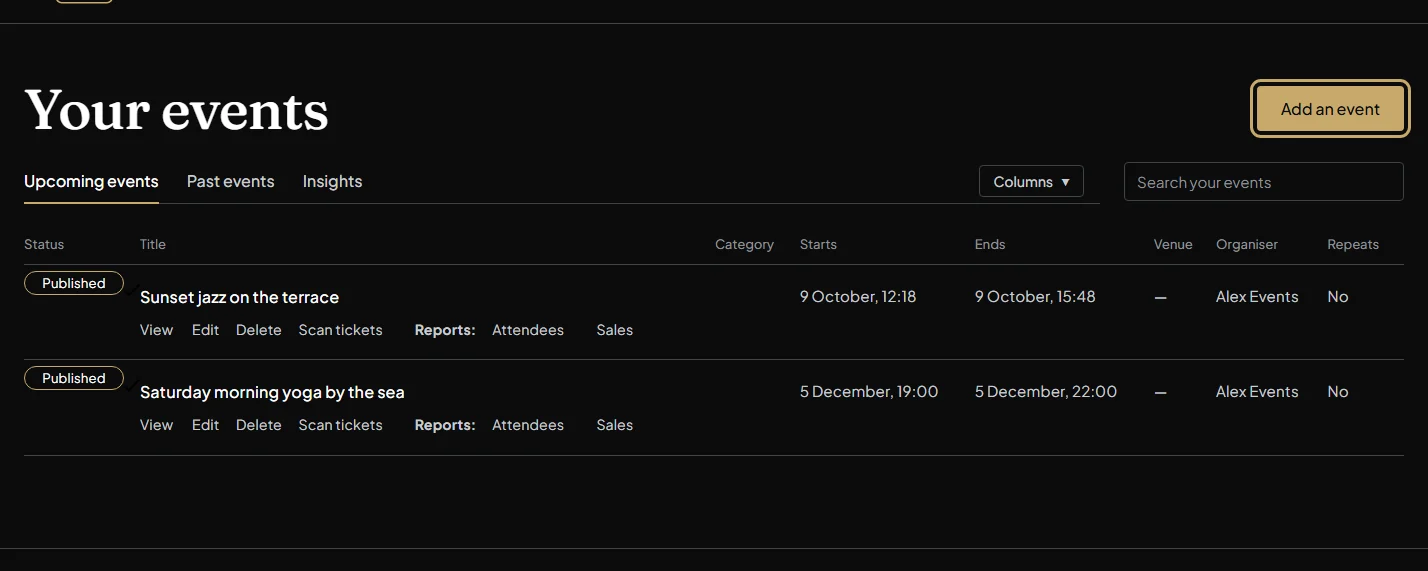
Open Your events
Log in and click Create Events at the top of the page. Your events lists everything you’ve added. Click Add an event.
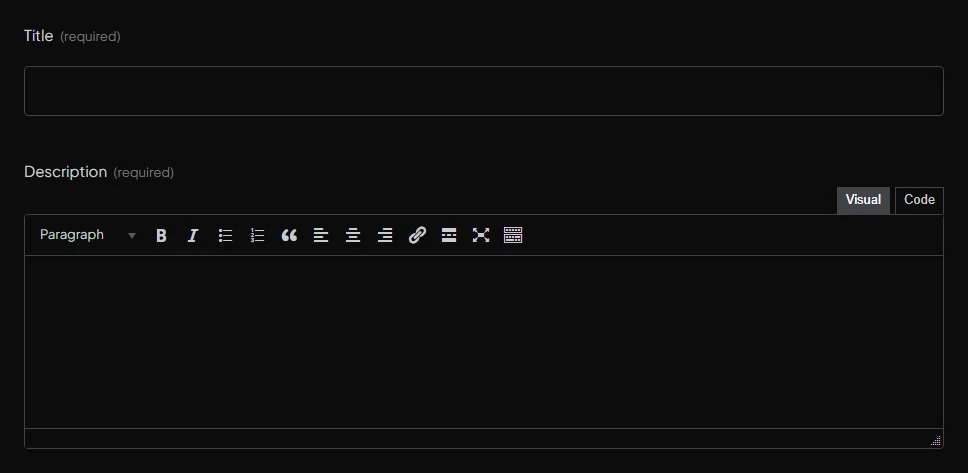
Write the title and description
The title appears on the calendar, on your event page and on every ticket. The description is your sales pitch: what the event is, who it’s for, what’s included and anything people should bring.
Tip: be specific. “Jazz night at La Bodega, Palma” tells people far more than “Saturday night event”, and is easier to find. Put practical details in the description too, such as age limits, dress code and what the ticket includes.
Set the date and time
- Starts and ends: the start date and time, then the end time and date. If your event runs past midnight, set the end date to the next day.
- All-day event: tick this for markets, fairs and other events without set times.
- Timezone: Europe/Madrid unless you change it, for example for an online event in another region.
- Repeats: for a class or event on a regular schedule, see how to create a series event.

Add a photo
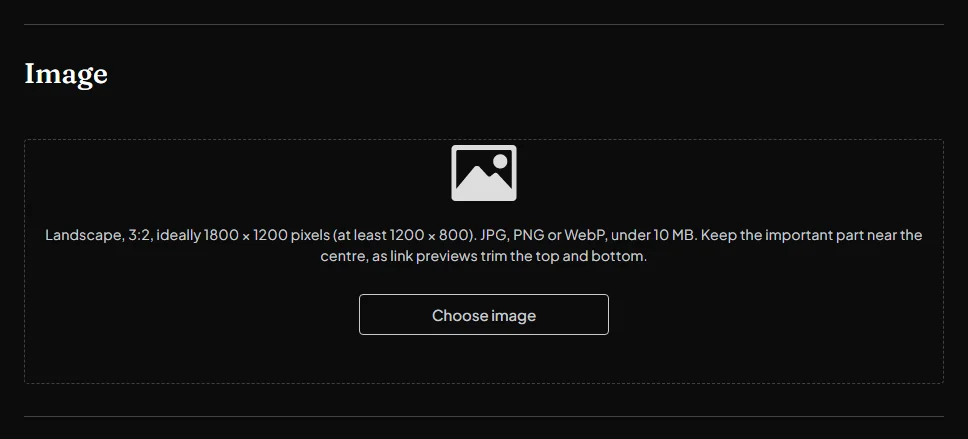
Click Choose image. Your photo appears on the calendar, on your event page and when the event is shared.
- Shape: landscape, 3:2, ideally 1800 × 1200 pixels (at least 1200 × 800).
- File: JPG, PNG or WebP, up to 10 MB.
- Framing: keep the important part near the centre, because event lists crop to 3:2 and link previews trim the top and bottom.
Tip: a strong photo or poster gets far more clicks than a generic stock image. Need help with one? Talk to us about marketing support.
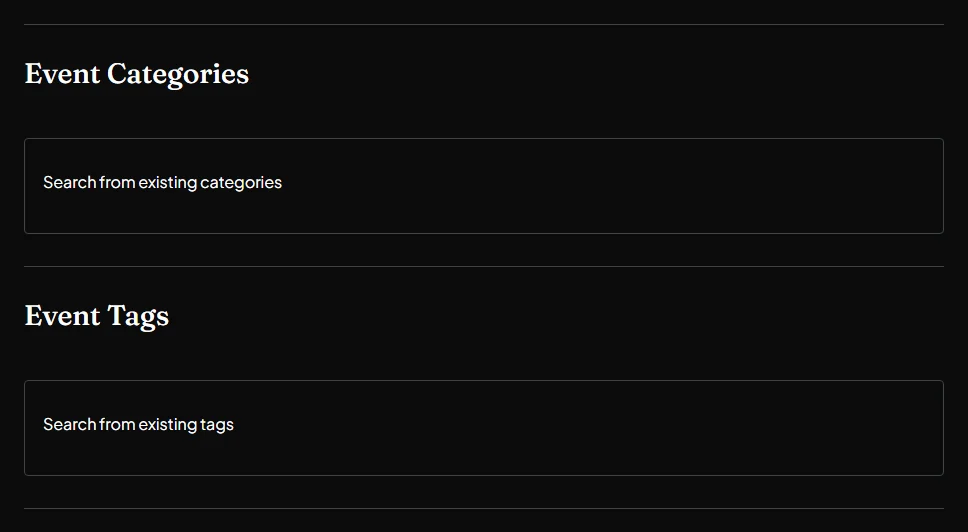
Choose a category and tags
Pick the category that fits best, such as music, wellness or workshops, so people find your event when they filter the calendar. Tags are optional words that help with searches, such as live music, outdoor or Palma.
Add the venue
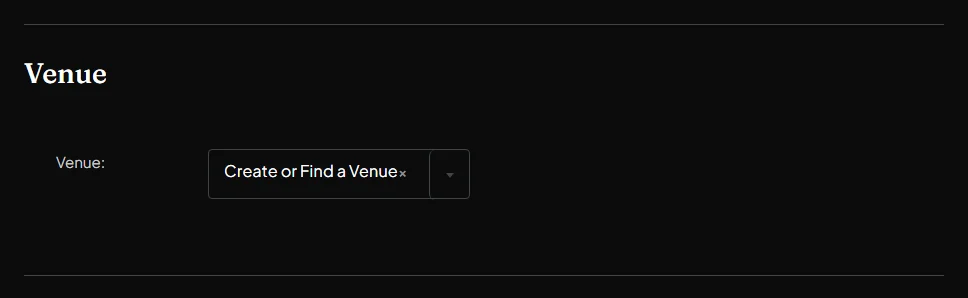
Choose your venue from the list, or add a new one with its name and address. The address puts a map and directions on your event page, and a venue you add is saved for your next events.
Add the organiser
The organiser is who’s hosting the event, shown on your event page. Choose yourself from the list, or add a new organiser with a name and, if you like, a phone number, website and email. For a co-hosted event, click Add another organiser.
Tip: the phone number and email are public, so use business contact details rather than personal ones.

Online events (optional)
For a live online event, open the Virtual Event section, click Configure Virtual Event and add the link to your stream or meeting. You choose who can see the link: everyone, or only people with a ticket.
Tickets
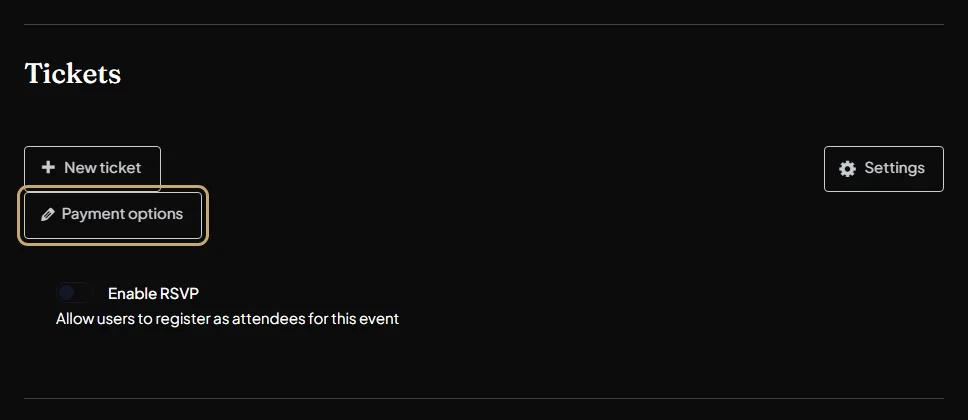
Add tickets in the Tickets section now, or save your event and come back later. Selling tickets for the first time? Start with Payment options to tell us where to send your ticket money. How to sell tickets covers it all.
Agree to the terms and submit
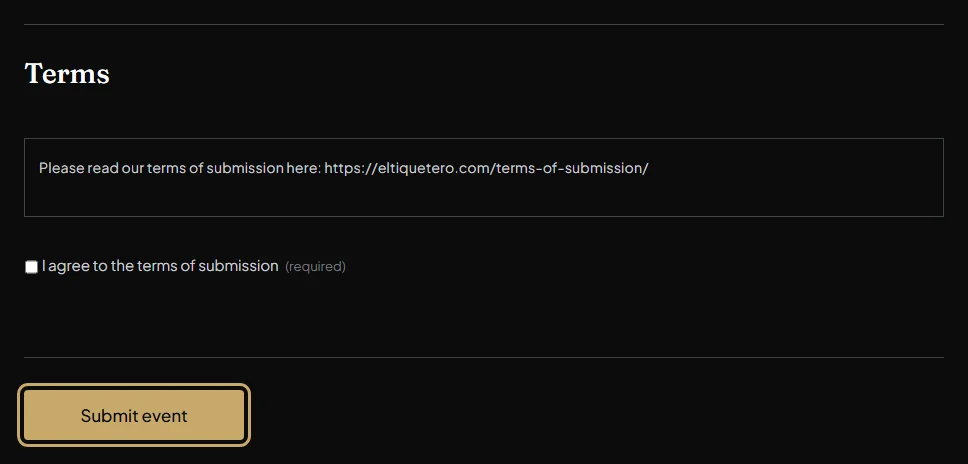
Tick I agree to the terms of submission (you can read our Terms of submission), then click Submit event. Your event goes live on the calendar straight away; there’s no approval to wait for.
Editing later: in Your events, click Edit under the event. Tick the terms box again each time you save a change.
Next: How to sell tickets
Stuck? Contact us or call +34 711 088 128, and you’ll talk to a real person.