
How to share creatives
Ready-made El Tiquetero buttons and banners, with your affiliate link built in. Use them on your website, in a newsletter or on social media.
Before you start
- You need: an affiliate account (how to become an affiliate)
- Time: a couple of minutes per creative
- Websites, blogs and newsletters: copy the code (step 3). Social media and WhatsApp: download the image and add your link (step 4).
Open Creatives
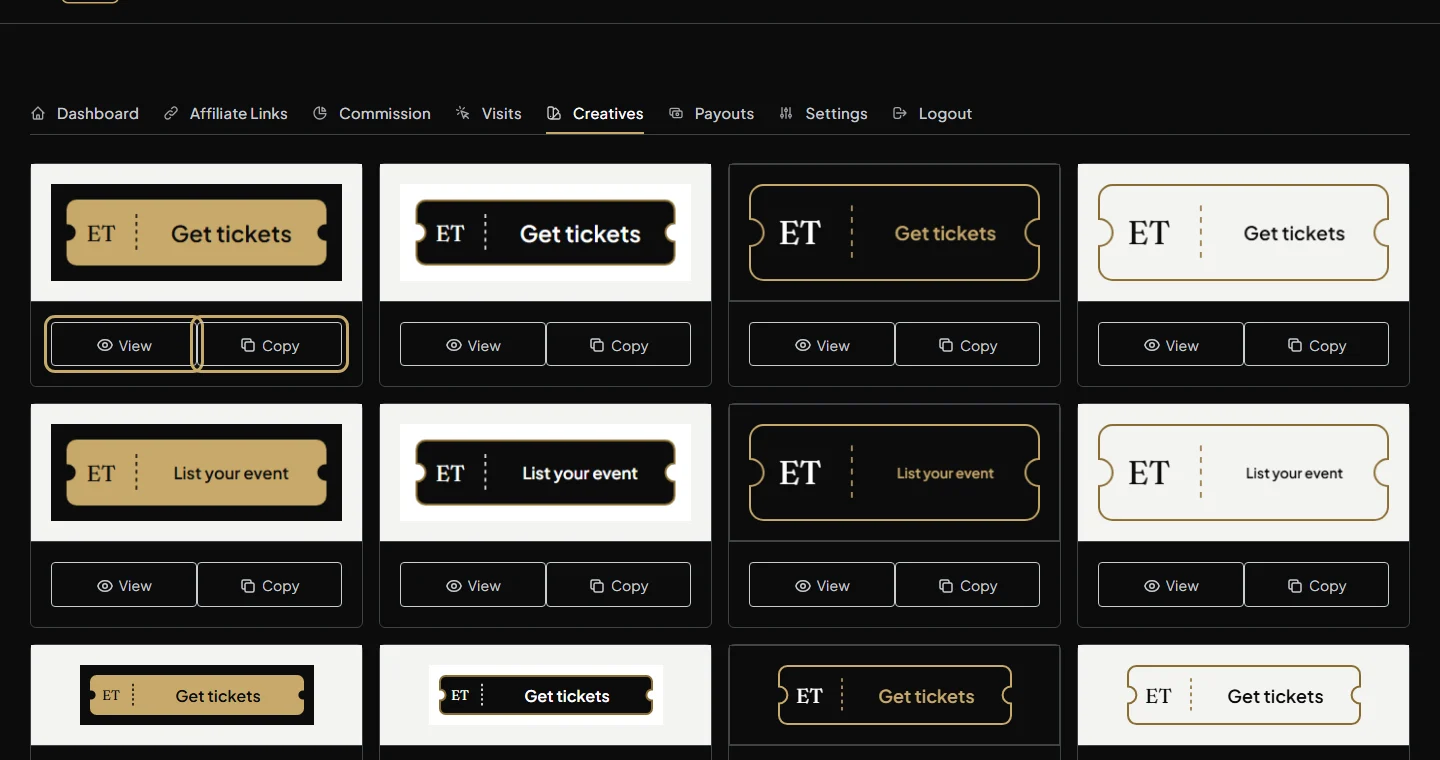
Log in to your affiliate area (Affiliate Dashboard in the footer, or the affiliate link in My Account) and open the Creatives tab. Each creative has two buttons: View and Copy.
Choose a creative
- “Get tickets” and “Find events” take people to the events calendar. Use them for people who go to events.
- “List your event” takes people to Why choose El Tiquetero. Use it for organisers, such as venues, teachers and promoters.
- Sizes: ticket-shaped buttons, web banners, squares, portrait and Stories sizes, landscape images and stickers.
- Dark or light: pick the version that stands out against where you’ll put it: dark on a light page, light on a dark one.
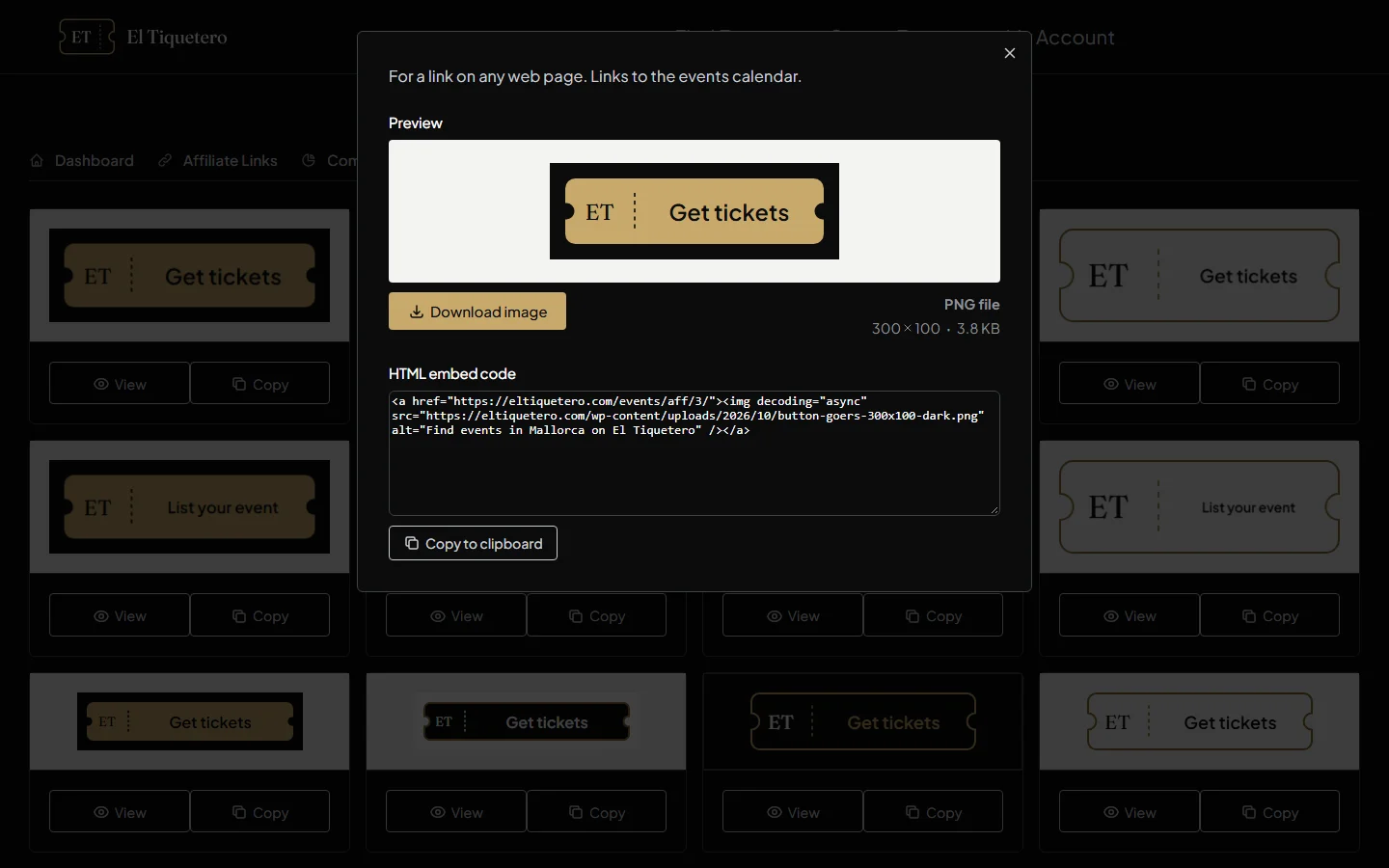
Click View to see a creative full size, with what it’s for, its size and its code.
On a website, blog or newsletter: copy the code
Click Copy under the creative (or Copy to clipboard in its View window). That copies a short piece of code: the image, linked to El Tiquetero through your affiliate link. Paste it where your website, blog or newsletter tool accepts HTML, for example a “Custom HTML” or “Code” block.
Tip: paste the code itself, not into a normal text box, or you’ll see the code instead of the image. If your tool has no HTML option, use step 4 instead: download the image and link it to your affiliate link.
On social media or WhatsApp: download the image and add your link
- Click View, then Download image.
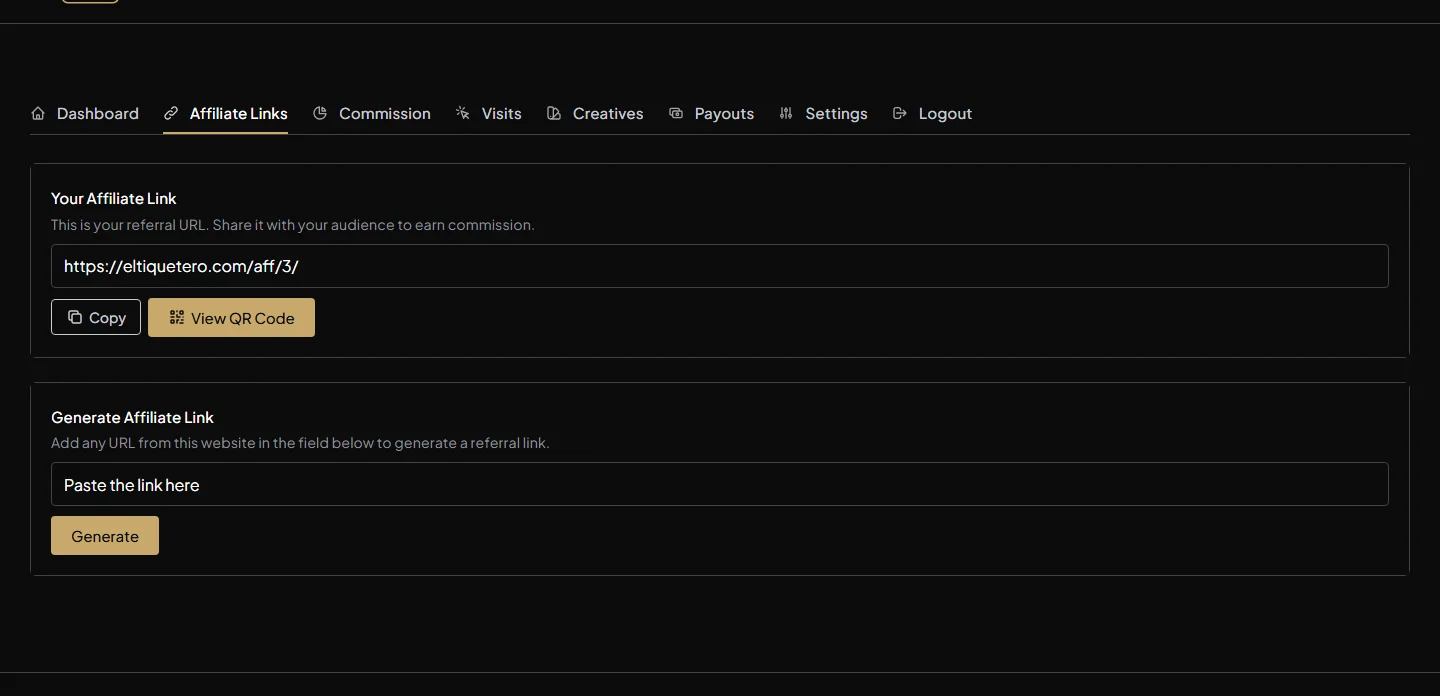
- In Affiliate Links, click Copy next to your affiliate link.
- Post the image and paste your link with it: in the post text on Facebook, LinkedIn or WhatsApp; in your bio or a link sticker on an Instagram Story (Instagram doesn’t make links in captions clickable).
For posters and flyers: in Affiliate Links, click View QR Code to get a QR code of your link that people can scan with their phones.
Point people at one event (optional)
Sharing a particular event usually works better than the whole calendar. Open the event on El Tiquetero, copy its address, then paste it into Generate Affiliate Link in Affiliate Links and click Generate. Share that link with the creative instead of your main one.
See what’s working
Visits shows each visit that came through your links, and Commission shows the orders they led to. The Affiliate programme page explains rates and when you’re paid, and the Affiliate programme terms say how you may promote us.
More guides: all how-to guides
Questions? Contact us or call +34 711 088 128, and you’ll talk to a real person.